Many Android users want their phone to look and feel like a computer. If you like the desktop interface of Windows and want something similar on your phone, a computer launcher can help. With a Windows-style launcher, your Android device can look like a mini PC that fits in your pocket.
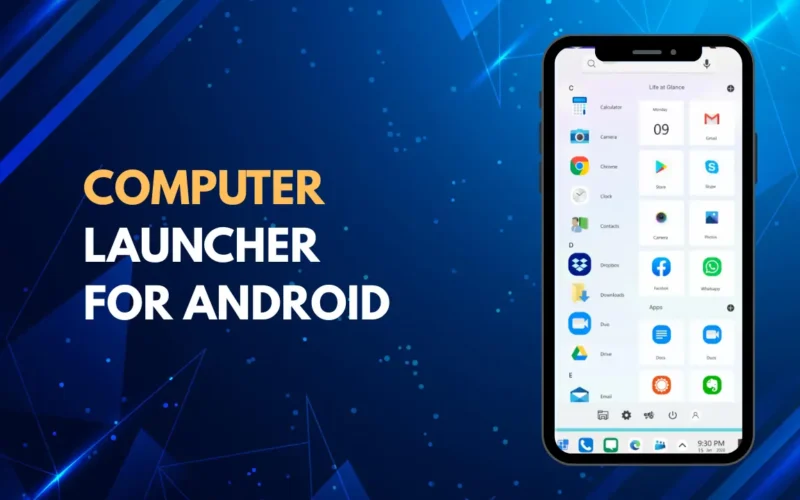
One of the most popular apps for this is the Computer Launcher for Android. This launcher changes your home screen, app drawer, and menus to resemble a Windows computer interface. It gives Android a new look without changing how your phone works.
In this article, you will learn what a computer launcher is, why people use it, and how to set it up using the app from the Google Play Store.
What is a Computer Launcher
A Windows-style computer launcher is an app that changes the look of your Android home screen. Instead of the usual icons and app grid, it gives you a desktop environment similar to Windows. You get features like a taskbar, start menu, desktop icons, and app windows.
This type of launcher is great for users who love the PC interface or want a fresh look for their phone. It does not require root and works on most Android phones.
About the App
The launcher we are talking about is available on the Google Play Store as Computer Launcher Pro.
This app brings a Windows-like desktop experience to Android. It includes a taskbar at the bottom of the screen, a start button that opens an app menu, and icons that can be placed like desktop shortcuts.
The launcher also offers quick access to settings, a search bar, and customizable themes. If you enjoy the look of Windows on your phone, this app makes it easy to use without complications.
Benefits of the App
Many users enjoy Android because it is flexible and easy to customize. A Windows-style launcher adds another level of personalization.
You might use this launcher if you:
• Prefer computer-like navigation
• Want to organize apps like desktop shortcuts
• Enjoy a fresh and different home screen design
• Want to mix the best of Android and PC
For some people, this setup feels more familiar, especially if they use Windows on their laptops or desktops every day.
How to Install the App
First, open the Google Play Store on your Android phone. In the search bar, type Computer Launcher Pro and look for the app by Protheme Launcher.
Download and install the app on your device. Once installed, open the launcher.
The first time you open it, the app will ask to set it as your default home screen. This means your launcher takes over the look of the home screen. Tap Always or Set as default when prompted.
Once the launcher is set, you will see the new Windows-style interface on your phone.
Basic Features You Will See
Desktop Icons: The launcher gives you a desktop view where you can place app icons just like on a computer. You can move icons around and organize them as you like.
Start Menu: At the bottom left, there is a start button. Tapping it opens a menu that lists apps and settings. This works like the Windows Start Menu and makes finding apps easier.
Taskbar: At the bottom of the screen, there is a taskbar. This stays visible and shows running apps. You can quickly switch between apps using the taskbar.
Search Bar: A search bar lets you quickly find apps or tools on your phone, just like on a computer.
Themes and Customization: You can choose different themes and styles for your launcher to make it look more like the Windows version you like.
Tips for Best Experience
When using the Windows-style launcher, you might need some time to get used to the new layout. It is different from the usual Android home screen.
Organize your most used apps on the desktop for quick access. If the launcher slows down your phone, try removing large widgets or reducing the number of icons.
You can always switch back to your original launcher from the Android settings if you do not like the new look.
Is It Safe to Use?
Yes, the Windows-style computer launcher is safe to use when downloaded from the Google Play Store. Always check reviews and app ratings before installing. Avoid giving unnecessary permissions to any app.
The launcher mainly needs permission to run as your home screen and may ask for access to icons and shortcuts.
Final Thoughts
A Windows-style computer launcher is a fun and useful way to customize your Android phone. It gives you a fresh and familiar interface that feels more like a PC. If you enjoy customizing your device or want a different home screen experience, the Windows-style launcher is worth trying.
Installing and using the launcher is simple and does not require technical skills. With just a few taps, your Android home screen can look like a computer interface and make everyday use feel new and interesting.