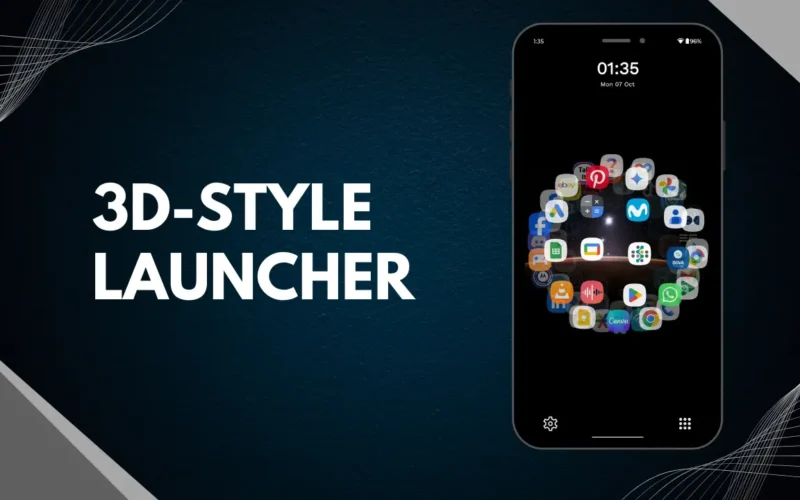
Your home screen is the first thing you see when you unlock your Android phone. A plain screen with basic icons can feel boring. But what if you could make it look modern, stylish, and more personal with 3D-style effects? That’s where a launcher app can help.
In this guide, you will learn how to customize your Android home screen in 3D style using an easy app called DNA Launcher. It does not require root and works on most Android phones.
What Is DNA Launcher?
DNA Launcher is an Android app that replaces your default home screen. It gives you many tools to personalize how your phone looks and works. The launcher lets you change layouts, icons, wallpapers, and visual effects, including fun 3D-style designs.
You can download it from the Google Play Store and use it to make your home screen look unique, smooth, and modern.
Why Customize Your Home Screen in 3D Style?
A 3D-style home screen makes your phone feel more attractive and modern. Instead of flat icons, you get depth, motion, and animation that look more engaging. This kind of design is eye-catching and can make your everyday phone use feel more fun.
You can use effects like spinning icons, holographic modes, and animated transitions to make your screen really stand out.
How to Install DNA Launcher
1) First, open the Google Play Store on your Android device.
2) Search for “DNA Launcher” and install the app by Atlantis Ultra Station.
3) After installation, tap Open to launch the app.
4) The first time you open it, the launcher will ask you to set it as your default home screen. Tap Always when asked. This lets the launcher take control of your home screen.
How to Set Up a 3D-Style Home Screen
Once DNA Launcher is set as your home screen app, follow these steps:
1. Choose a 3D or Holographic Mode
Inside the launcher settings, look for styles or themes. Some versions include a holographic or 3D spin mode. Select this to get that 3D depth effect on icons and layout.
2. Customize Icons and Layout
You can change the shape, size, and style of icons. Try round icons or custom packs to enhance the 3D look. You can also adjust the grid and position of icons on your home screen.
3. Add Wallpapers and Themes
Set a wallpaper that matches the 3D effect. Some wallpapers give a sense of depth that works well with animated icons and holographic styles.
Extra Customization You Can Try
DNA Launcher also allows you to:
- Change the app drawer style
- Use gesture shortcuts for quick actions
- Organize apps with smart search or categories.
All these options make your home screen more functional and personal.
Is It Safe and Easy to Use?
Yes, DNA Launcher is safe to use as long as you download it from the official Play Store. It does not require any complex permissions, and you can switch back to your original launcher anytime from your Android settings.
The app works without root, which means your phone stays secure.
Tips for Best 3D-Style Home Screen
- Pick wallpapers that match your effects
- Use icon packs that suit your style
- Do not crowd your screen with too many icons
- Try different animation speeds for smooth motion
These simple tips help your setup look clean and impressive.
Final Thoughts
Customizing your Android home screen with 3D style can make your phone feel fresh and personal. Using DNA Launcher makes this easy, even if you have never changed your home screen before.
Just install the app, choose your style, and enjoy a smarter, more stylish Android experience.